

This article was published first at Tekkigurus.com (2/7/2024), but tekkigurus.com has been closed, so I decided, to republish the article here again:
AutoStart After Signing in to Windows
The AutoStart After Signing in to Windows Group Policy Has Long Been on the Wish List of many Administrators. Good things come to those who wait. You can now force OneDrive to start automatically. Why is this so important?
Many users struggle with OneDrive and simply switch it off. There may be many reasons for this, but in a business environment this is not advisable, because if you want to work with others, you need to have synchronization switched on. A user might have outdated files on their local computer, which they might edit, but then the versions do not match those that other employees have already edited. If the user later switches OneDrive ON, conflicts arise during synchronization.
Microsoft has implemented the OneDrive group policy for administrators to automatically start OneDrive when signing in to Windows (see figure 1).
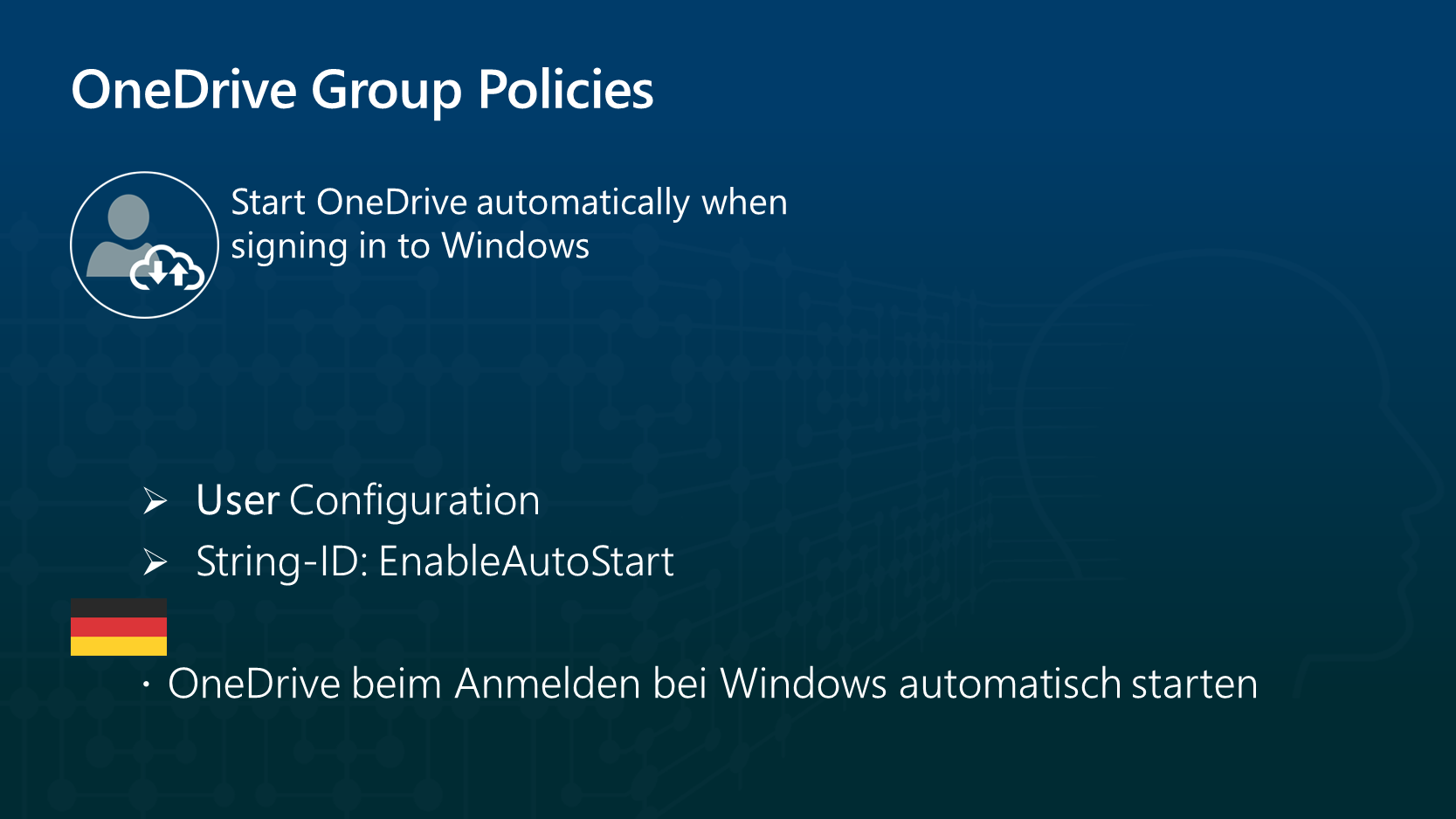
This is a user configuration, and if enabled by the administrator, OneDrive will always start when you log in.
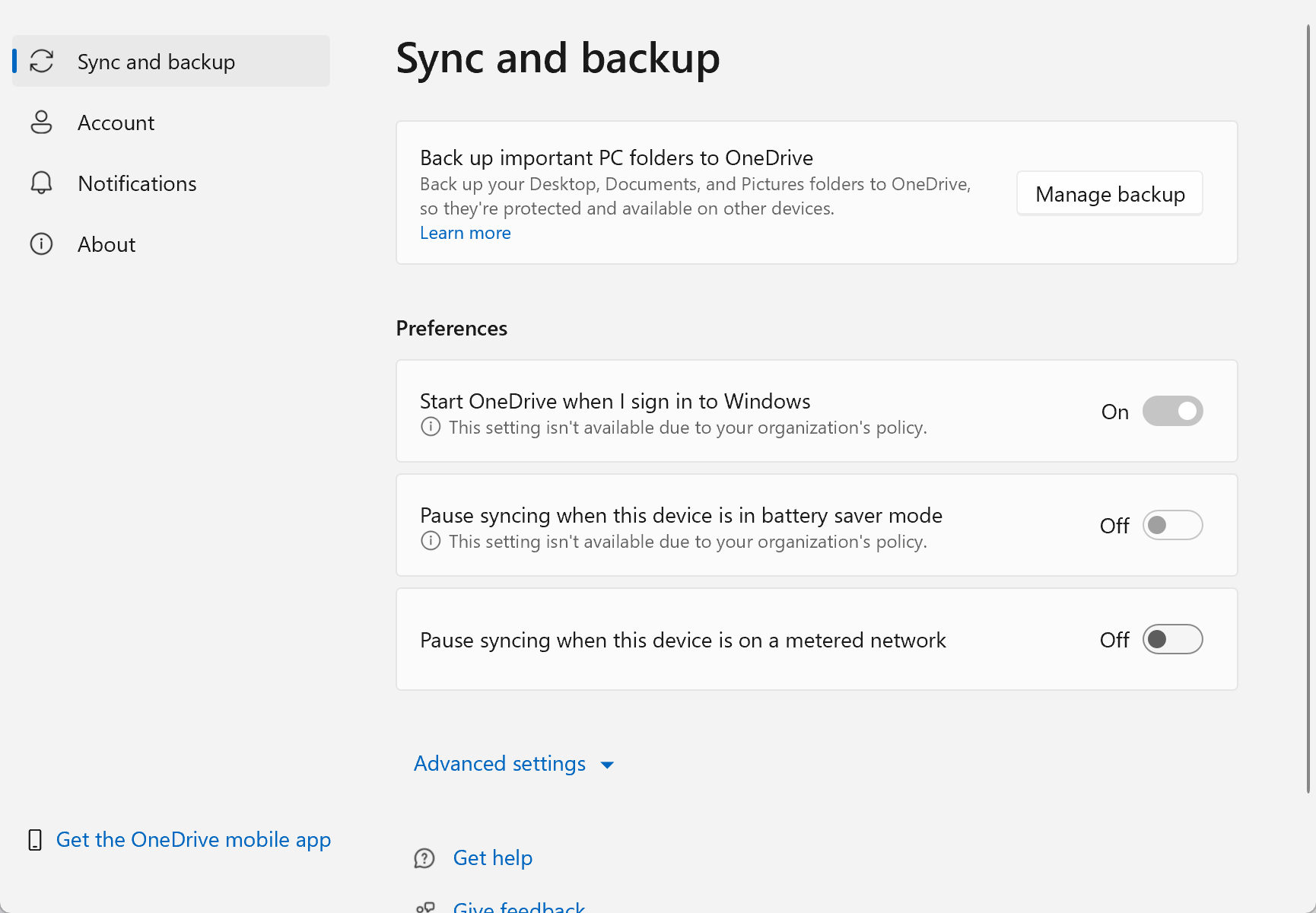
If this group policy is not enabled, the user can decide for themselves. Click the blue cloud icon in the system tray, then click the gear icon to display the properties, then select Sync and backup from the menu as shown in figure 2.
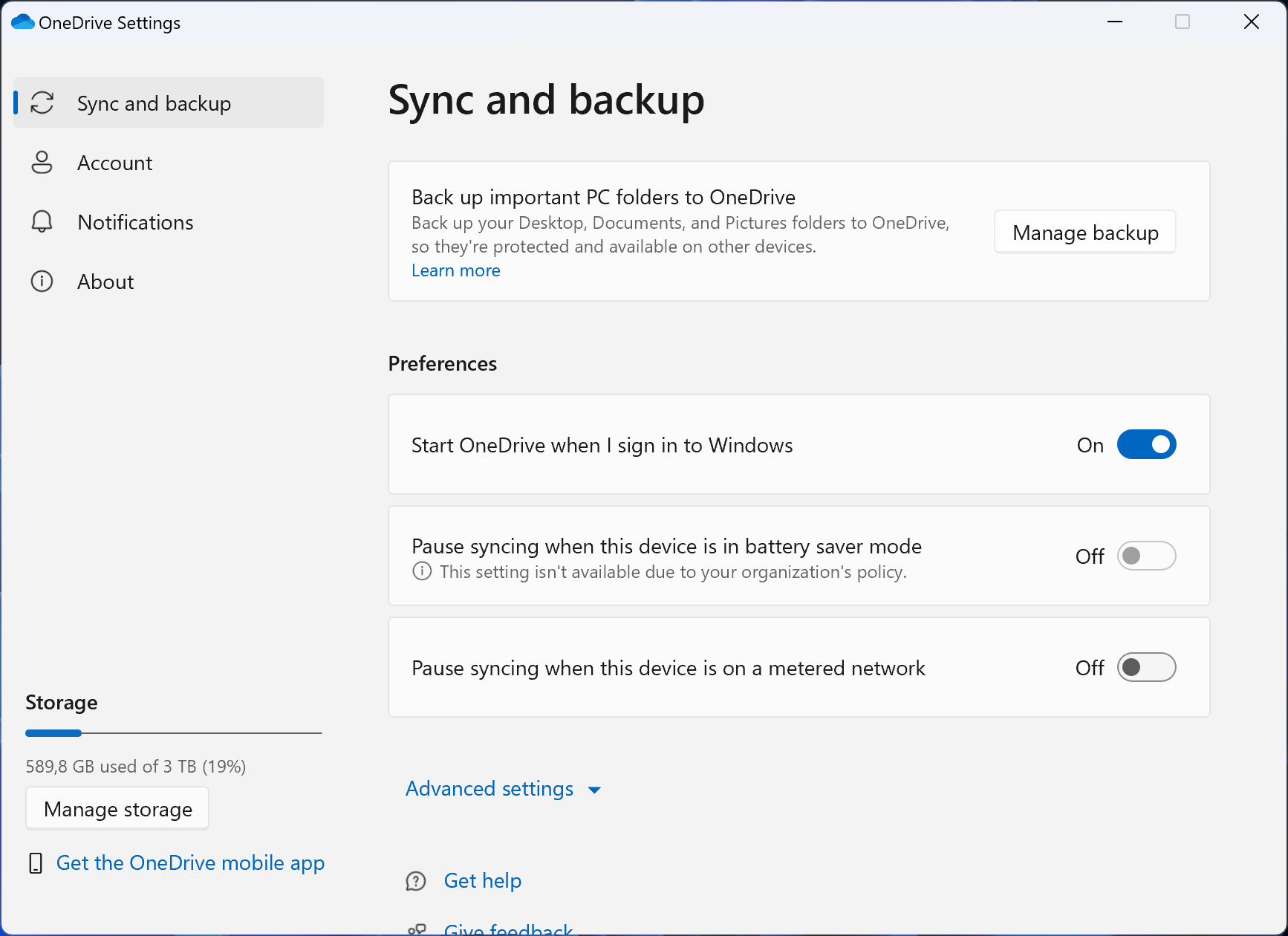
Many users find this setting and then switch it off, but when you start OneDrive manually, you no longer know how to access OneDrive manually.
Setting the Group Policy to Automatically Start OneDrive When Windows Starts
You may see the description of the OneDrive group policy Start OneDrive automatically when signing in to Windows at learn.microsoft.com but here I have summarized everything:
GPO Name: Start OneDrive automatically when signing in to Windows
String-ID: EnableAutostart
Enabling this setting will override a user’s choice, ensuring OneDrive will automatically start every time they sign in to Windows.
If an administrator configures this setting, OneDrive will start automatically when a user signs in to Windows. The OneDrive sync app must be restarted after this setting is enabled for the setting to take effect.
If you do not configure this setting or set it to any value other than 1 (see the registry entry below), the user can choose to automatically start OneDrive (default choice) or to disable OneDrive from starting in OneDrive sync app settings.
Registry-Entry
[HKCU\Software\Policies\Microsoft\OneDrive] EnableAutoStart="dword:0000001"
Local Testing
To install and then test these group policies locally, read the basics of OneDrive group policies here.
Before I get to the configuration (figure 3), I suggest a few group policies that I recommend to all companies. The links below take you directly to the right place on Learn.microsoft.com, please also read these articles for more information.
- Enable sync health reporting for OneDrive
- Require users to confirm large delete operations
- Use OneDrive Files On-Demand
- Set the sync app update ring
- Prompt users when they delete …. files on local device
- My post Correctly Delete and restore files with OneDrive
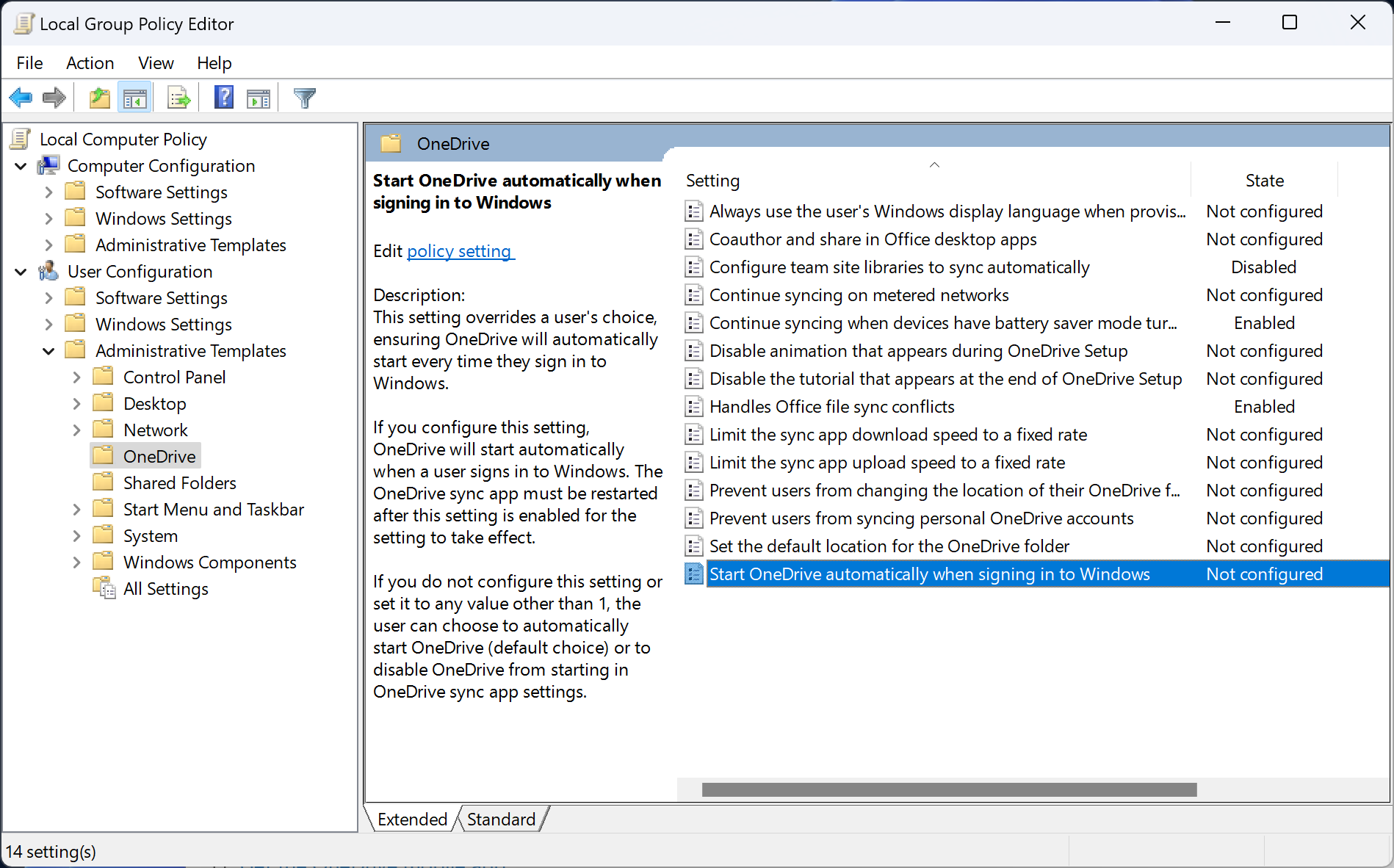
Before you start the Local Group Policy Editor, remember to copy the OneDrive admx and adml files into the Windows\PolicyDefinitions and Windows\PolicyDefinitions\en-US directory. Now start the Local Group Policy Editor (figure 4), find the setting named Start OneDrive automatically when signing in to Windows, and then double-click to Activate it. Confirm by clicking OK. Not surprisingly, you’ll then see something like figure 4 with the policy Enabled.
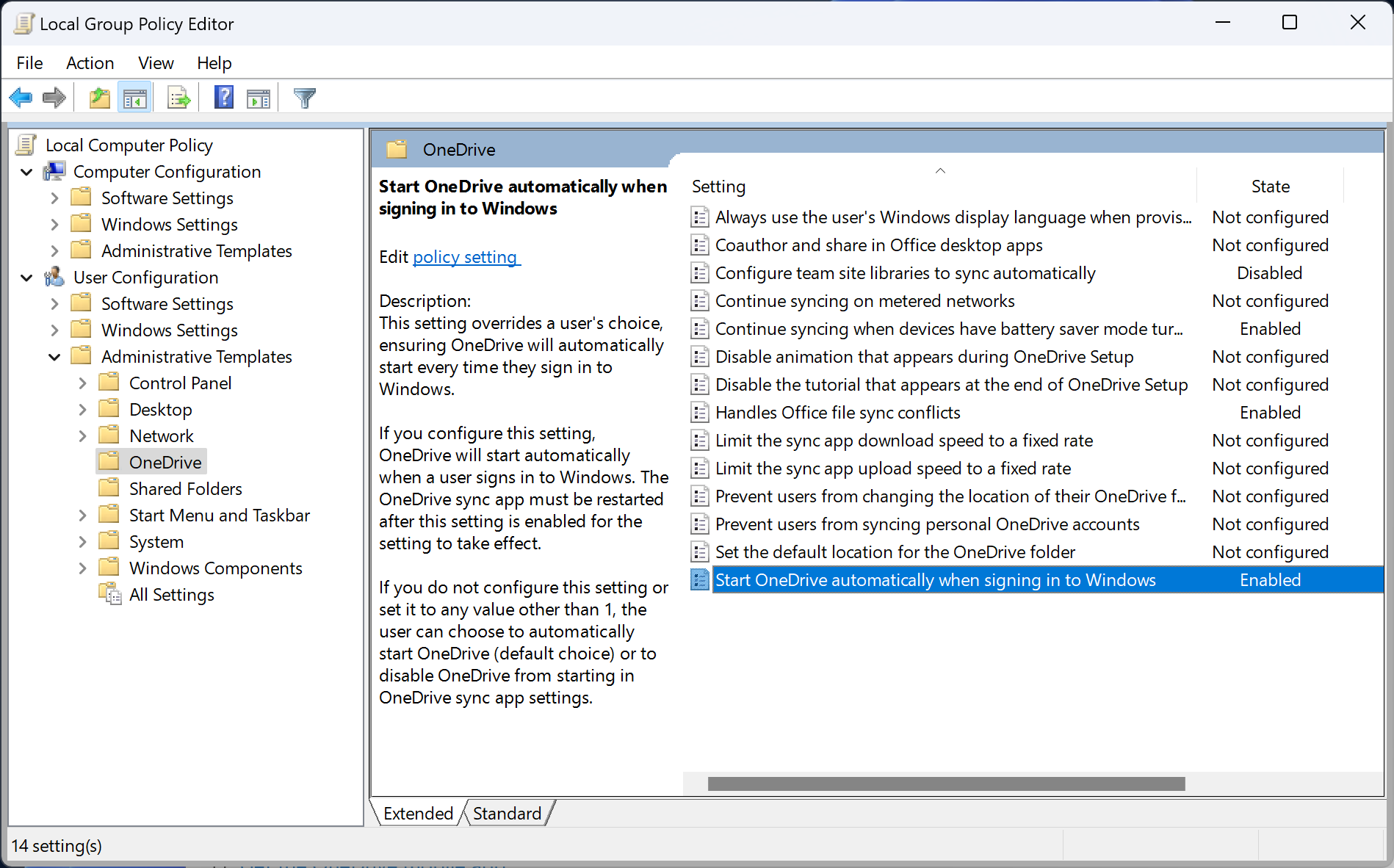
And that’s it. If you do not want to enable any of the group policies I have mentioned above, you can leave the Local Group Policy Editor and, as described above, you will need to log out of Windows and then log in again for the group policy changes to take effect.
A user who tries to change this OneDrive setting to turn off OneDrive will then see figure 5 in their Sync and backup preferences (see figure 2 to compare).
Features and Summary
In Citrix environments it makes sense to activate this group policy. I would also use this policy in the company network. However, there may be users who are travelling by train with their laptop in an area with bad internet or who need to work from home with low upload speeds. If a user reports such issues to their administrator, the administrator should change the activated OneDrive group policy Start OneDrive automatically when sign in to Windows back to “Not configured,” but this should only be done after consultation and/or training.
The OneDrive group policy, Start OneDrive automatically when signing in to Windows, was long overdue. Because in Teams, where people can turn OneDrive sync on and off at will, trouble is inevitable.
Links
I first recommend that you read Implementing OneDrive Group Policies for Small Businesses
Entdecke mehr von Hans Brender's Blog
Melde dich für ein Abonnement an, um die neuesten Beiträge per E-Mail zu erhalten.

 Hans Brender's Blog
Toller Artikel!
Magst du bitte noch die Konfiguration über Intune ergänzen?
LikeLike
Ich benutze kein Intune, aber es handelt sich ja nur um eine einzige Gruppenrichtlinie…
LikeLike