

During the Microsoft OneDrive Office Hours on 04/17/24 the question comes up, why not using CheckIn and CheckOut to handle Conflicts. And because its still available for SharePoint, but people do not find it on OneDrive (for Business). But OneDrive for Business is also a site collection of SharePoint it must be there. If you have time and want to check it, then you may read the configuration below.
But I do not recommend the CheckOut/Checkin function. This function was established first in Microsoft Visual Source Safe, where Programmers may Checkout part of the functions, where they work during the day. In the evening , after checking the code, that mus be ready for Compling later, they use the CheckIn function. During the time of Checkin and CheckOut other programmers are not able to edit.
During the old days of SharePoint OnPremise and also in Sharepoint Online the function is still there. But now it works for Files. In SharePoint it will work, but you do not see it in OneFDrive for Business. And if you will work in with „Add a shortcut to my files“, many people do not know, where the data is stored. In OneDrive? Or in SharePoint.
So I do not recommend the CheckOut/CheckIn function
- That’s old technology. It’s old fashioned
- It doesn’t work in OneDrive for Business unless you do not sync.
- it is complicated to configure it.
- Again: You cannot sync OneDrive, when it is configured
You should work with the normal procedure, which will normally work, but not always. If the function inside the Cloud cannot merge two documents, it will the save the last one with the same name appending the computer’s name. This is a forke file. And this file will synced to the other parties as well. But now the users have to merge the file manually.
Special features of CheckOut/CheckIn in OneDrive for Business
Before I describe the configuration, you have to know:
- OneDrive for Business is a site Collection of SharePoint.
- Each User of your Tenant (if it has SharePoint Online) gets this Site Collection.
- Each User of the teanat is an Administrator on his OneDrive for Business
The bad thing is:
- By Default, CheckOt/CheckIn is off by default
- The configuration, where each user hast to go through, one time!
- After Configuration: Befor you may edit a document, first CheckOut.
- The User then edit it alone, other users are locked.
- After editing, the Usaer has to CheckIn the Document
The last point is critical. Because if the user forget to checkIn, all other users are unable to edit the document. Think of: on journey, a conference, a telefon call, last thing before the weekend starts,…
And: The user must always Checkout/Edit/CheckIn every time on the file!
The CheckOut/CheckIn Configuration with Pictures
Go to OneDrive: Click the Gear Icon

The Settings Menu shows several Links

Click on OneDrive Settings. The page with OneDrive Settings is shown:

Click on Return to classic OneDrive. The classic site shows Documents. First, click again on the gear icon (1)

Then you see the Settings Menu: Second click on Site Content (2). The Browser switched to SharePoint….

…where you have to click on Site settings. We are back in OneDrive Site Settings:

Click on Site libraries and lists. We are now on Site Settings – Site Libraries and Lists.

Click on Customize “Documents”
We are now on the Settings of the Documents
You see the URL:
https://mvphb-my-sharepoint.com/Personal/hans_brender_hbsoft.de. That this is OneDrive for Business of the User Hans.Brender@HBsoft.de.
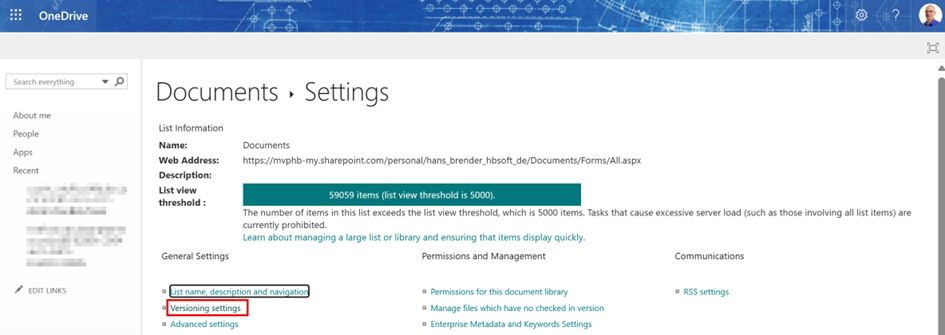
Click on Versioning settings

Under Versioning Settings the last paragraph: Require Check Out
Specify whether users must check out documents before making changes in this document library. First: Click on YES (1), Second click on Ok (2)
Thats all
To revert the functionality you have to disable the function you have to click on No and OK
Entdecke mehr von Hans Brender's Blog
Melde dich für ein Abonnement an, um die neuesten Beiträge per E-Mail zu erhalten.

 Hans Brender's Blog
Ein Gedanke zu “OneDrive: CheckOut / CheckIn”