

This article was published first at Tekkigurus.com (5/2/2023), but tekkigurus.com has been closed, so I decided, to republish the article here again:
Back in December 2020, Microsoft released a synchronization option for folders and files, which has not really caught on with many people. In this article, I would like to show the advantages of Add to OneDrive. Today’s organizations have countless documents, and classic sync has some limitations and restrictions, so Microsoft implemented a different form of sync: Add to OneDrive (Add shortcut to OneDrive).
What Is Add to OneDrive?
Microsoft introduced the next generation of synchronization with Add to OneDrive. Although that’s what Jeff Teper, President – Microsoft Collaborative Apps and Platforms called it, it really should be called Add shortcut to OneDrive to reflect that if someone shares a folder in OneDrive, SharePoint, or Teams, you can add a shortcut to the shared folder in your OneDrive to find and work with the files.
The idea of synchronization, which is the basic element of collaboration, has its limitations, which has led to major restructuring of SharePoint libraries for some Microsoft 365 customers. Although the processors of small devices have become faster, we are reaching our limits, given the number of files in today’s environments. Windows 10, build 1709, introduced Files On-Demand. This feature speeds up the synchronization of large libraries, since in principle only the entries of the file name have to be transferred. This includes the file name, the extension, an image, several attributes, and various date formats such as creation of the document or last change. The actual file content remains in the cloud, but downloading it is only one click away. Nevertheless, the sync engine has a lot to do because New Technology File System (NTFS) has to be synchronized repeatedly with the cloud. Companies and users have increasingly been working on Office documents simultaneously because the list of synchronization scenarios has gotten longer:
- OneDrive Personal
- OneDrive for Business
- SharePoint document libraries
- Local synchronization of folders/files from Shared with me
- Backup of System folders (KFM: desktop, documents, images, music* and videos*);
KFM = Known Folder Move - Synchronization of other tenants
- Request Files
- B2B Synchronization
- Synchronization of Add to OneDrive files
* The system folder music and videos are used in backup, but only in OneDrive Personal.
Limitations of Classic Sync
In the past, you had to sync all or nothing. In other words, you could only sync a complete library. You couldn’t sync from within a folder, which is now possible. The classic sync, with or without Files On-Demand, has some limitations.
Limitation of 300,000 Items That You Can Sync or Copy
For optimum performance, there’s a restriction on how many items can be synced or copied. You are limited to 300,000, and you have to count all files from the following:
- OneDrive Personal
- OneDrive for Business
- All synchronized SharePoint document libraries
This has nothing to do with OneDrive Files On-Demand. If you have more than one OneDrive for Business, you need to count all of them (maximum nine). There are no restrictions on the length of the file. You should consider the specifics of your device: for example, a slow, older device where you’re working with a large library vs. a new device. Consider factors such as the amount of computer power that’s available, the quality of your Internet connection, and the number of files you’re working with. The background sync process should not stop or interrupt your work. This is true even if you use an old device with an old processor and a slow mechanical hard disk.
Data Is Synced Only on One Device
If you use classic sync to sync data, it will be synced only on your current device. If you want to sync the data on a second device, you must start the sync process on this device again. Many administrators want to automate this process. They can do this with a OneDrive Group Policy called Configure team site libraries to sync automatically. However, this only works if the library contains more than 5000 files or folders, or if you want to sync a library with more than 1,000 devices.
Unlinking Is Problematic
If you want to stop syncing a library on your devices, you must stop the sync process manually on each device.
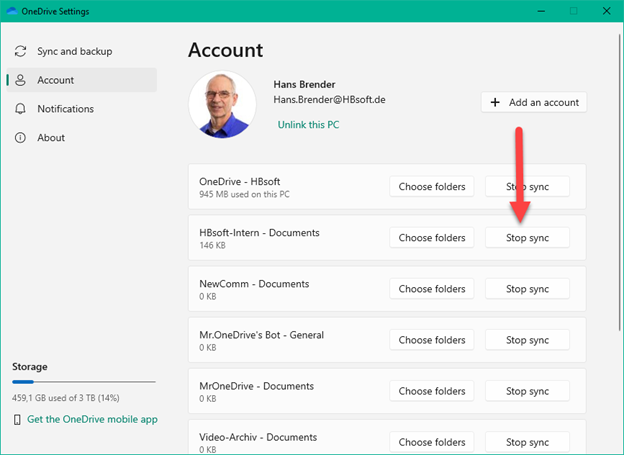
To stop syncing, go to your OneDrive settings by clicking the blue Icon in the notification area, clicking the gear symbol in the top-right corner, and then clicking Account.
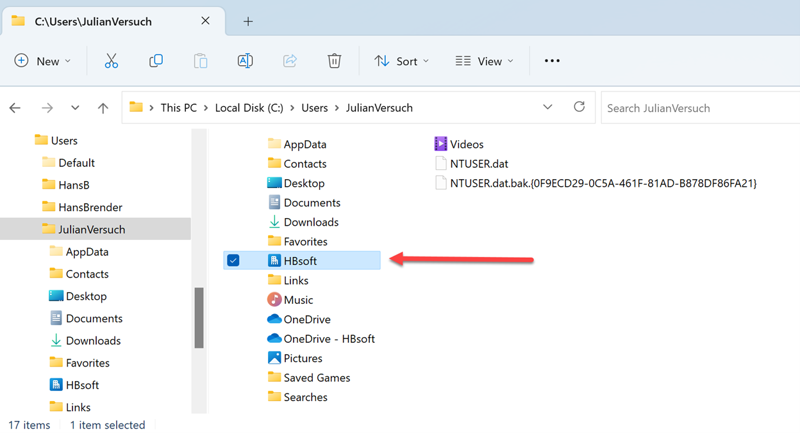
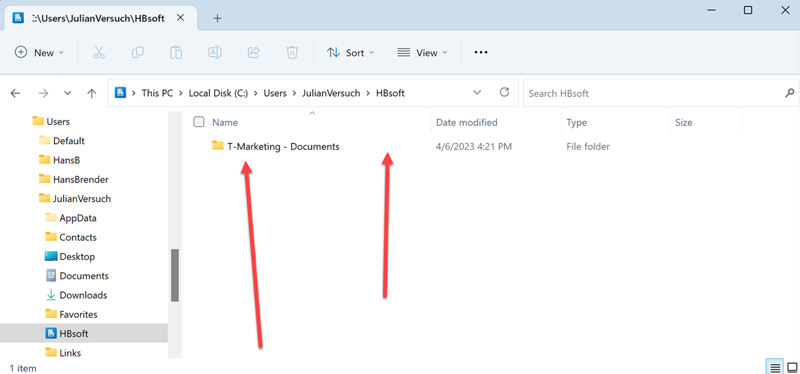
Be aware that the data is still on your device! If you want to delete the data, you have to find where the synced files are stored on your device.
Open Windows Explorer and go to the following directory: C:\Users\[UserName]
The username in this example is JulianVersuch.
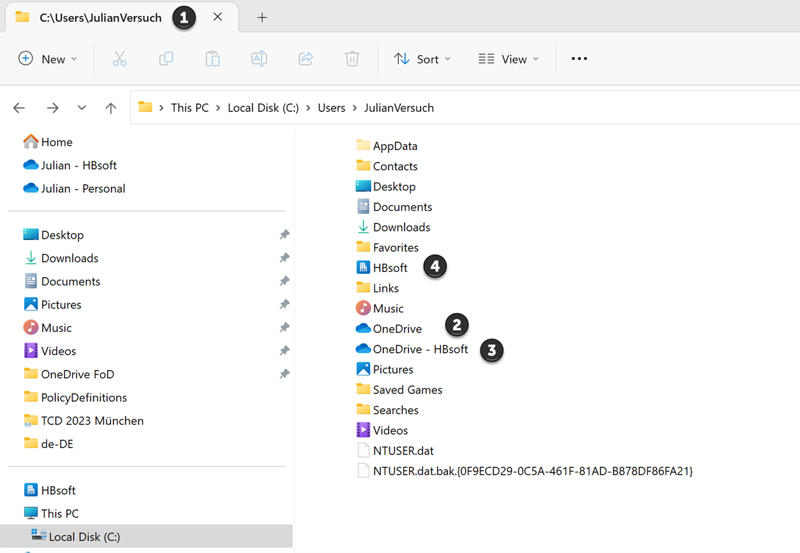
Figures 2 and 3 show numbered examples of OneDrive accounts, synced SharePoint document libraries, and location of synced files:
- (1) This directory contains the folders of the synced files.
- (2) OneDrive without a tenant name is OneDrive Personal.
- (3) OneDrive with the tenant’s name is OneDrive for Business.
- (4) This is the folder symbol of one or more synced SharePoint document libraries.
Tip: If you want to unlink a document library, first look in the folder.
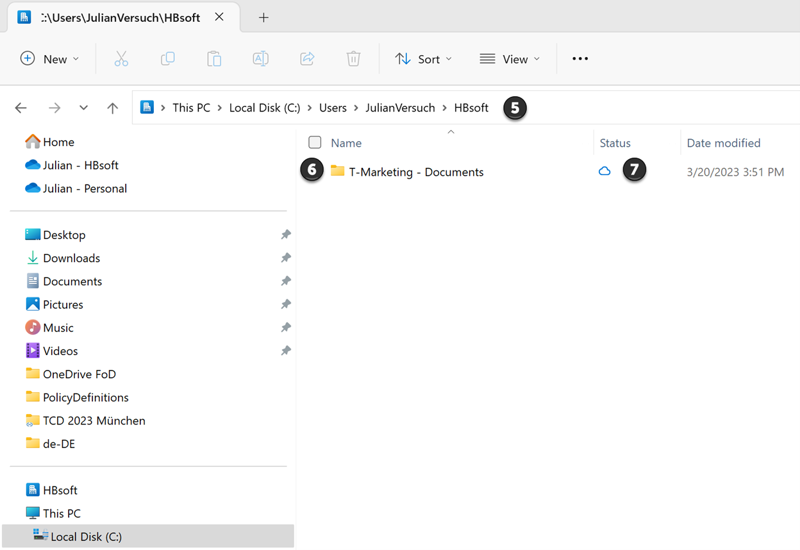
- (5) This is the file path in the directory, which you double-click.
- (6) You see the folder structure.
- (7) After you unlink, you won’t see the status (here cloud only) anymore.
Add Shortcut to OneDrive vs. Classic Sync
if you use the Add a Shortcut to My files feature, it creates a shortcut in OneDrive for Business, even for data that’s in a SharePoint document library.
Note: Synced data from a SharePoint document library has a Building icon for the folder structure, whereas Add a Shortcut to My files has a special icon, as shown in Figure 4.

ou can create a shortcut to OneDrive from different locations:
- SharePoint document libraries
- Shared with me in OneDrive for Business
How It Differs from Classic Sync
You can start on any folder from a SharePoint document library, except the root, and you must have access to the SharePoint Library. Select a folder in the browser. You might see a new sync symbol with the name Add a shortcut to My files.
The folder will be synced immediately to your OneDrive for Business.
It’s important to remember:
- The shortcut folder and the files in it will be in your OneDrive for Business, even when the original files are still stored in a SharePoint document library.
- Unlike with classic sync, if you have more than one device, the sync will begin automatically if you start your device, including on iPhone and Android devices.
- Other employees of your company can share a folder with files with you. You will receive an email with the folders. You can find them in your OneDrive inside the browser under Shared with Me. From here, you can select this folder and then select Add a shortcut to My files, the same as I described with the SharePoint document libraries.
If you do not need the files, remove the shortcut. You can do this in your OneDrive through the browser, from Windows Explorer, or from your mobile device. This will remove the shortcut. It will also remove the synced data from all your devices. However, the data remains in its original storage!
Explorer Tip
If you want all shortcut links to be in one place (such as a specific folder), move (drag and drop) them in a special folder with a name of your choice.
Tip: I have prefixed the folder name with an underscore, which is always at the top in a normal Windows Explorer/browser view, as shown in Figure 5.
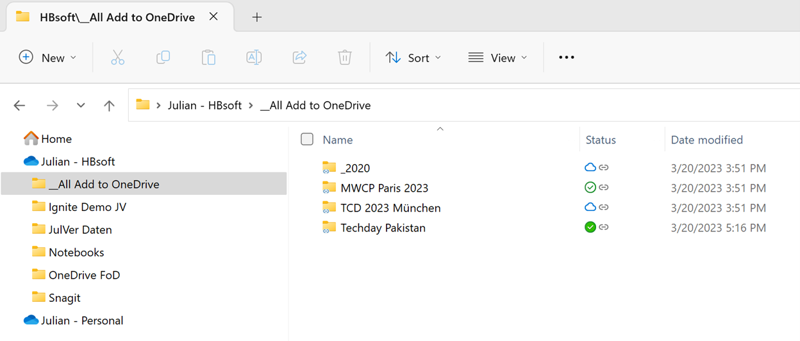
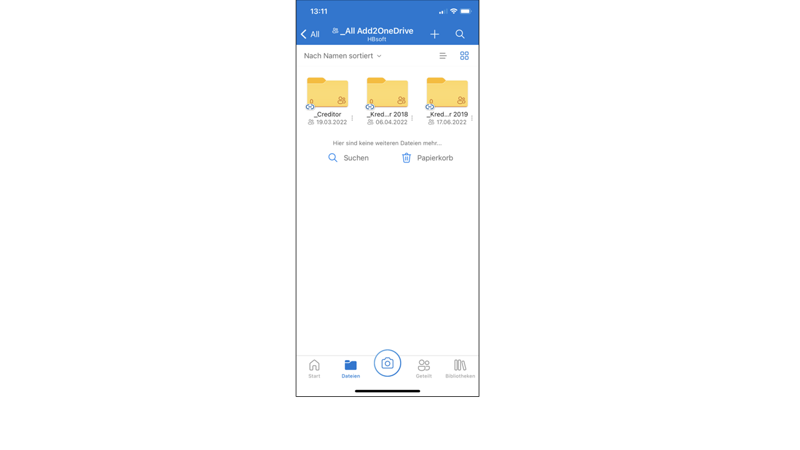
Figure 6 shows the sync that happens automatically on the iPhone.
Errors
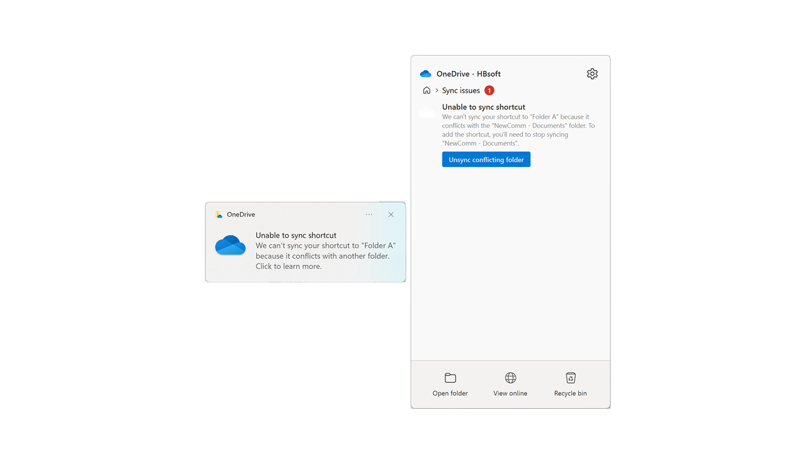
Most people who are new to Add to OneDrive receive an error message after they first click the shortcut click in the browser. It is not possible to synchronize twice. Therefore, if you already use classic sync, you can’t use the same library and the Add link to my files function right away. You first need to stop syncing on each device. Also, don’t forget to delete the files on each Windows device. You can only use Shortcut to my Files after that. Figure 7 shows an example of a message about sync issues.
Six Steps to Move from Classic Sync to Add to OneDrive
Moving from classic sync to the newer Add to OneDrive sync method is not always easy. This section guides you through the process step by step.
You have synchronized the entire library. It does not matter how many items are included. When the Files On-Demand function is enabled, the files that aren’t progress do not take up space on the hard disk.
Step 1: Stop Classic Synchronization
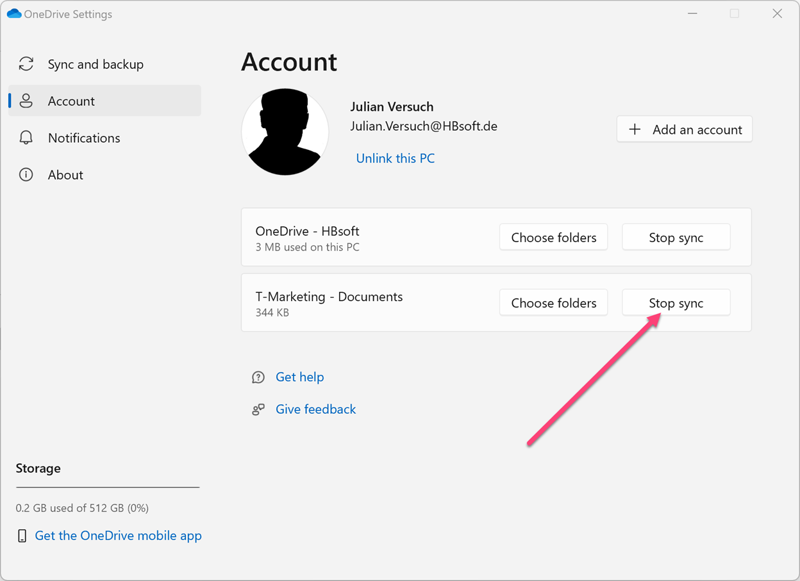
Before you use the new method, you must end the existing synchronization. Open the blue cloud symbol in the Windows notification area with a right-mouse click, and then select Settings. Go to Account, identify the synced documents, and then select Stop sync, as shown in Figure 8.
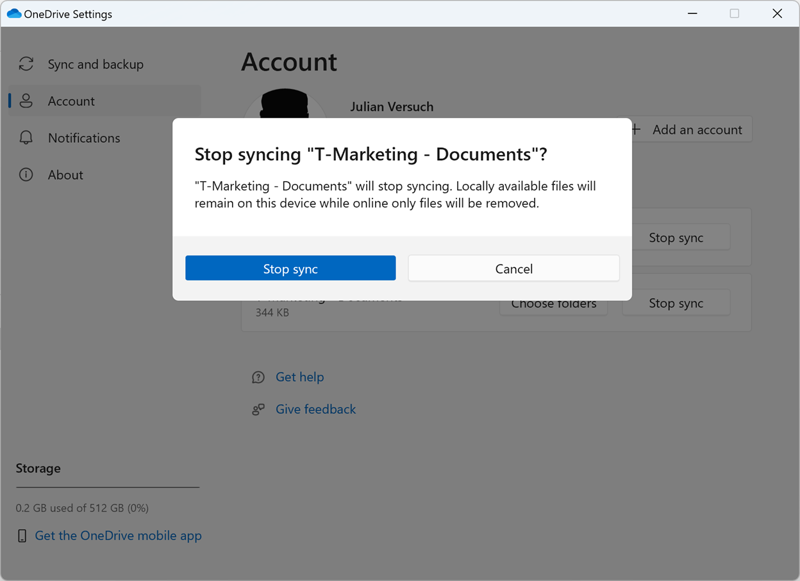
You will get a warning message that the previously synced files will no longer be synced, as shown in Figure 9. Confirm that you want to stop syncing. Files with the status Cloud only will disappear on this device. all others will be kept, but no longer synced.
Step 2: Stop Sync on Other Devices
If you own more than one device and have set the above synchronization on these devices as well, you must repeat step 1 on all your devices. This does not include mobile devices like iPhone, iPad or Android devices.
Step 3: Switch to SharePoint Online in the Browser
Switch to the browser and search for the corresponding library under SharePoint (1). Within the library, select one folder. The number of subfolders and files that it contains is not important. Select only the folder with where you do your daily work. After selecting one folder (2), select Add shortcut to My files (3) or select the icon (3), as shown in Figure 10.
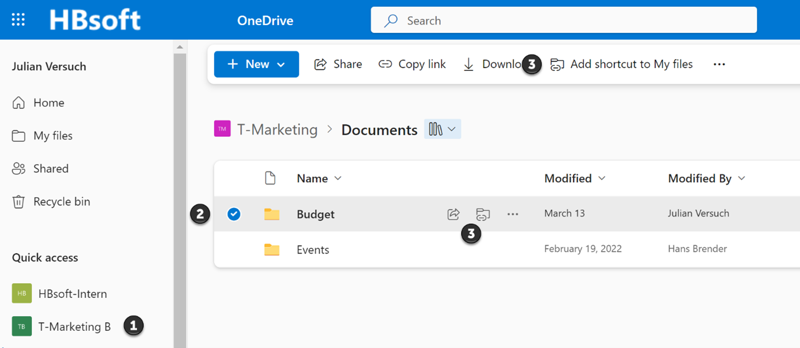
The selected folder will appear in several places:
- OneDrive (for Business) under My files
- In Windows Explorer under OneDrive (for Business)
- In mobile devices (iOS, Android) in the OneDrive app
The folder will have a new folder icon. This is true for all devices including mobile devices.
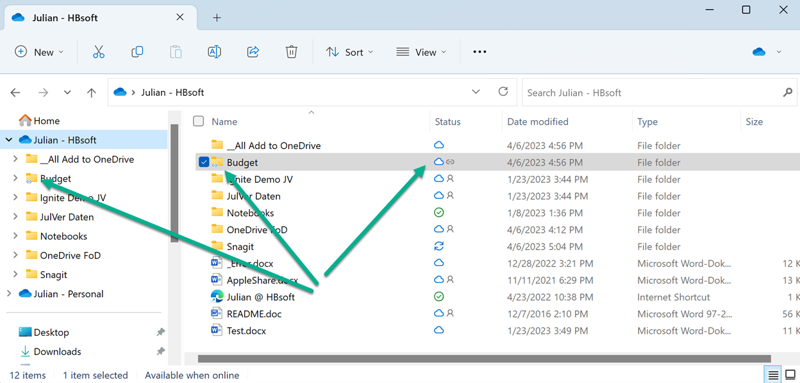
Step 4: Rename the Shortcut
From a large library, you can select exactly the files you need for the next time to work. This reduces the sync volume, whose upper limit is 300,000 files. But since it is a shortcut, you can rename it without causing a change in the origin, as shown in Figure 12 (renamed from Budget to T-Marketing Budget).
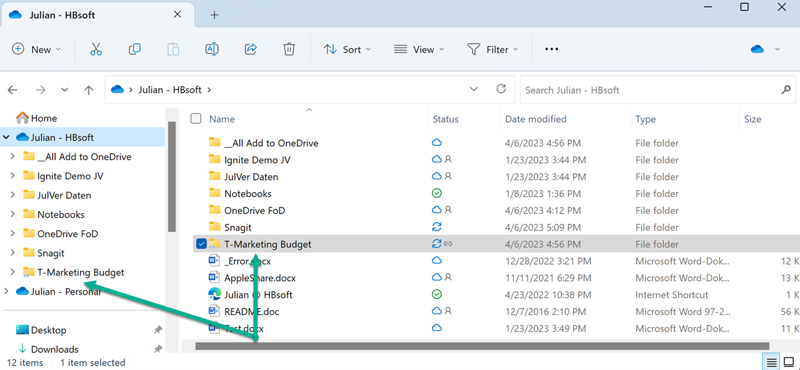
This action happens on all devices, including mobile devices (iOS, Android).
Step 5: Delete the Original Classic (No Longer Synced) Folders
The last step in the conversion is to delete the folders and files that are no longer synced.
Why do this now? Well, if something went wrong, you can always go back to the old sync. Again, only one sync of a library is possible. If you want to go back, you must unlink it, which you can do from the Windows Explorer context menu:
- Windows 10: Right-mouse click: Remove shortcut.
- Windows 11: Right-mouse click, hover with the mouse over OneDrive (1) and then choose Remove shortcut (2), as shown in Figure 13.
The shortcut is removed, along with the folders and subfolders/files.
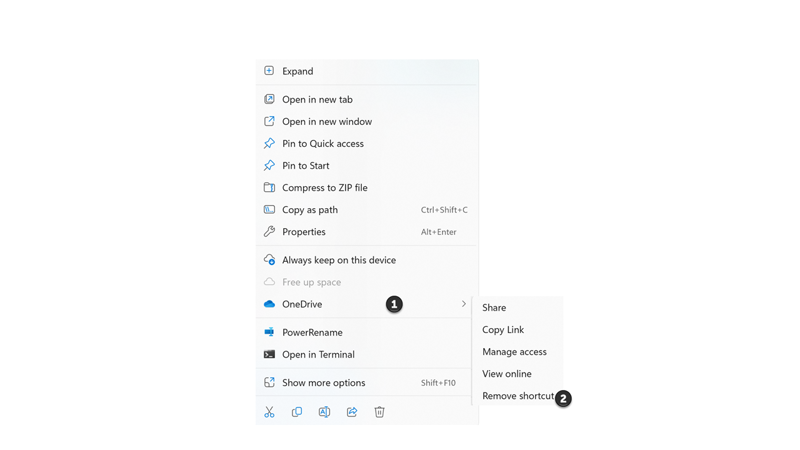
Again, select Remove shortcut. This removes the folder from all devices, including mobile devices (iOS, Android) and the data, but not at this origin.
Step 6: Delete the Original Synchronization
In this scenario, classic sync was already stopped, but the data hasn’t been deleted. But I have not deleted the data. You have to delete the data on all of your devices.
To delete the document library that is no longer synched (stopped sync in step 1):
- Go to the Users directory.
- Identify the folder.
- Select the folder.
- Delete the folder with the subfolders/files.
See Figures 14 and 15.
Disable Add to OneDrive
Administrators can suppress Add to OneDrive functionality with PowerShell tenant-wide. Reasons for disabling it can include:
- The users have not been trained yet.
- The administrators have not yet realized the benefit.
- The Add shortcut to OneDrive function cannot be automated with group policies.
If you’re an administrator and don’t want anyone to use Add shortcut to OneDrive, you can disable it on a tenant level with PowerShell:
# Update to the newest module
Update-Module -Name Microsoft.Online.SharePoint.PowerShell
# Connect-SPOService -Url https://<your tenant>-admin.sharepoint.com
Connect-SPOService "https://mvphb-admin.sharePoint.com"
# get a list and search for an entry in the following list: DisableAddtoOneDrive
Get-SPOTenant
# WARNING: Users in your organization will no longer be able to add new shortcuts to
# their OneDrive.. Existing shortcuts will remain functional.
Set-SPOTenant -DisableAddShortcutsToOneDrive $True
To reenable the functionality, set the last cmdlet to $False.
Summary
If administrators do not understand synchronization, they start migrating files from local file servers to SharePoint libraries. Also, if they have never heard about the restriction of synchronization (300,000 files), they have to split it to more than one SharePoint Library. In 2020, Microsoft created Add to OneDrive, which has pros and cons.
Synchronizing SharePoint libraries has the following pros (+) and cons (–):
- Manual triggering of synchronization by selecting the Sync button +
- Automatic triggering via group policy ++
- The group policy always affects the root directory, so it’s all or nothing –
- Restriction by filter only conditionally possible, because faulty –
- If synchronization is canceled, data remains on device – –
- Synchronization must be run on every device –
- Desynchronization must be run on every device – –
- Renaming of root order not possible –
- Fragmentation of the structure –
Add a Shortcut to My files has the following pros (+) and cons (–):
- Only manual triggering of synchronization –
- No group policy –
- Synchronization in the OneDrive folder +
- Synchronization on all devices including mobile devices ++
- Shortcut can be renamed +
- When the shortcut is dissolved, the data is deleted on all devices ++
- Quickly created, only designated folder, then again resolution +
- Only applicable within an organization –
When using OneDrive sync, remember that:
- The primary system is always the cloud, not your device.
- You cannot sync twice from the primary storage space.
Try it out. Before you migrate, restructure your large SharePoint Libraries.
Hope you find this useful!
Additional Links
Add shortcuts to shared folders in OneDrive for work or school
Restrictions and limitations in OneDrive and SharePoint
Entdecke mehr von Hans Brender's Blog
Melde dich für ein Abonnement an, um die neuesten Beiträge per E-Mail zu erhalten.

 Hans Brender's Blog
Great info so far. I have understand that there is a 300k / 400k (Win11 testing) limit of synced items. So far, so good.
When using the classic sync, all of the files of the entire DocLib are counted to the amount of synced elements.
When using the new shortcut, is this the same? Or does the shortcut only count the affected files from the linked folder (and not the entire DocLib it is coming from)?
LikeLike
Add2OneDrive: it count only from the folder you select (with all files and folders down)
Sync (I calle it classic sync): From the top element, all folders down all files
Sometimes during migration the do not wants to redesign the structure
I sometimes also use 2 or more shortcuts from the same library.
LikeLike
Is the limit of 300.000 synced files valid for files and folders OR only files? Micorsoft uses the terms files and items . The latter includes Folders from my perspective, but that is just my interpretation and I am not 100% sure.
LikeLike
its a soft limit. And according to Microsoft a Shortcut the limit is about 400 k
LikeLike
Thank you very much for the swift response Hans. And the soft limit number is for files only or files AND folders?
I am asking this because we have document libraries with a template folder structure (for every offer) and therefore 2/3 of the doc lib items are folders, while 1/3 of the items are files.
LikeLike
I think both, because a folder is an abject, has a name, could be changed…
LikeLike
Thank you for the response. I was hoping to find a 100% answer by Microsoft that it would be ONLY files. Due to the uncertainty I will act as if the limit is for files and folders. 🙏
LikeLike
Hi , is there a way to disable the sync option . So that we can get our staff to only use the add to OneDrive option?
LikeLike
To disable the classic synchronization of OneDrive and still enable the „Add Shortcut to OneDrive“ feature, you can hide the „Sync“ button in SharePoint Online. This will prevent users from using the classic synchronization feature while still allowing them to add shortcuts to their OneDrive accounts.
Steps to hide the „Sync“ button:
Using the SharePoint Online Management Shell:
Open the SharePoint Online Management Shell.
Run the following command to hide the „Sync“ button on team sites:
Set-SPOTenant -HideSyncButtonOnTeamSite $true
To hide the „Sync“ button on OneDrive for Business sites, use:
Set-SPOTenant -HideSyncButtonOnODB $true
These settings prevent the „Sync“ button from being displayed on the relevant websites, while the „Add shortcut to OneDrive“ function remains available.
Note: Hiding the „Sync“ button prevents users from setting up new synchronizations. However, synchronizations that have already been set up remain active. It is advisable to inform users accordingly and encourage them to manually remove existing synchronizations to ensure consistent use of the „Add link to OneDrive“ function.
This method has been successfully used in practice to disable classic synchronization while retaining the „Add Shortcut to OneDrive“ feature.
By making this adjustment, you can ensure that your users make optimal use of the modern functions of OneDrive without having to resort to classic synchronization
LikeLike
Heyy thre would you mind letting mme knolw wwhich hosting compaqny you’re utilizing? I’ve loadd your blog in 3 different internnet browsers annd I mjst say this blog loads a lot quicker hen most. Caan you ecommend a goopd internet hosting prolvider at a honest price? Cheers, I appreciate it!
LikeLike
wordpress.com
LikeLike
Thank you for this great article. I’m wondering if files synced via Add to OneDrive still counts against the 300.000 documents limit?
LikeLike
According to the Microsoft OneDrive Group in Redmond: In Windows 11, they are testing the 400000. But it is not valid in all circumstances, therefore the website still has 300000 files
LikeLike